
Dual-core
MIPO-CAT · HARDWARE COMPANION
A voice, a face, and a place on your desk.
Mipo-Cat brings Mipore conversations and routines into the room through voice, an expressive display, and simple physical controls. Provider credentials and full conversation history stay with Mipore on your computer—not on the robot.
CONVERSATIONYOUR SETTINGSDESKTOP COMPANION
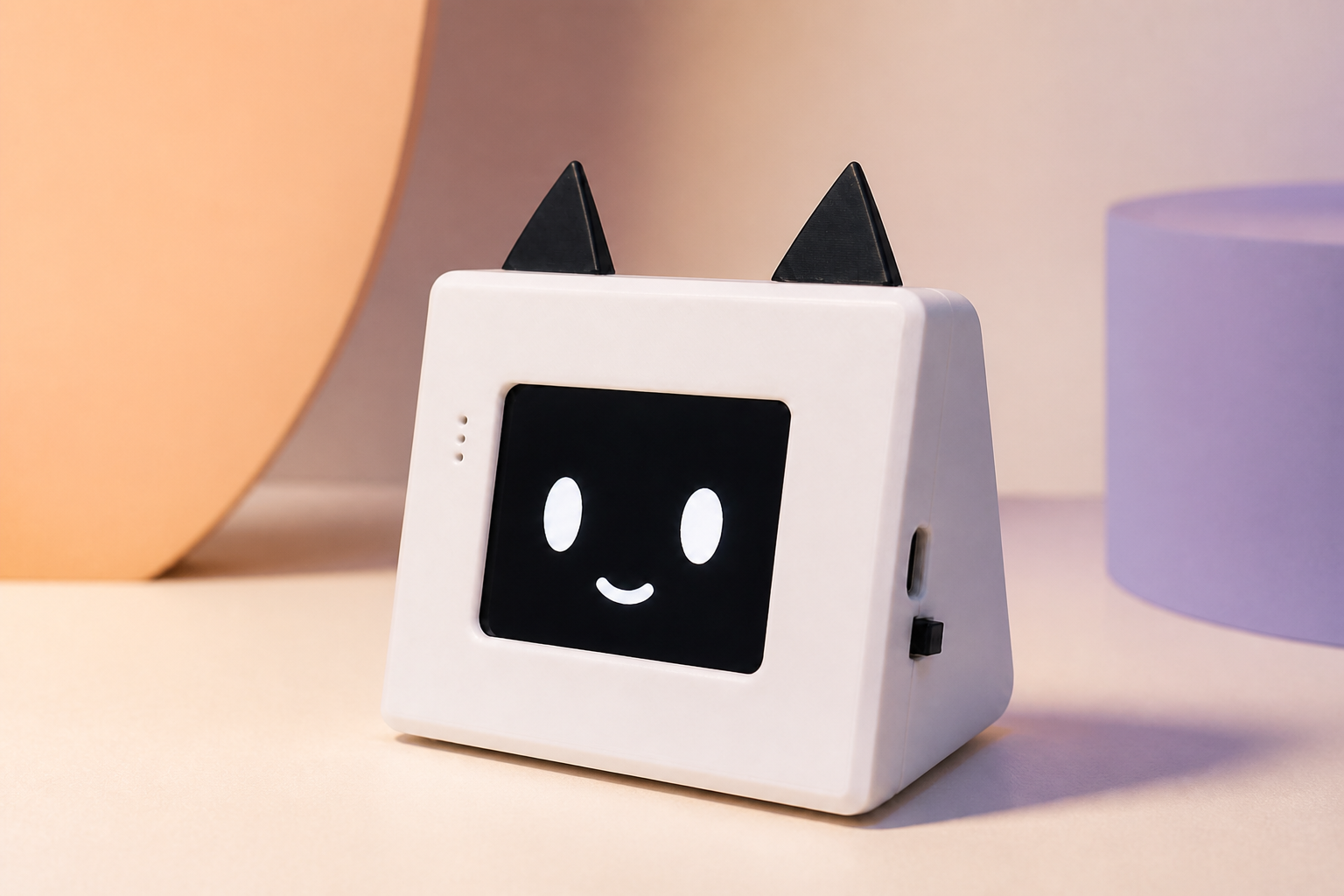
MIPO HARDWARE · MIPO-CAT
Meet the hardware behind the companion.
Mipo-Cat is a small ESP32-S3 desktop companion with a 2.8-inch expressive screen, microphone, speaker, Wi-Fi, Bluetooth, and physical controls, designed to work with the Mipore app.
SOLD OUT · AVAILABILITY NOTIFICATIONS OPEN
A playful face for the routines already in your day.
Talk through your chosen AI provider, set alarms and briefings, use quiet modes when needed, and choose how Mipo-Cat looks while it listens, responds, or sleeps.
- 01Expressive 2.8-inch display
Switch faces, show a clock, or turn the screen off for sleep.
- 02Voice, reminders, and briefings
Use the Mipore app for conversation, alarms, schedules, and daily information.
- 03Private boundaries stay explicit
You choose the provider, voice, memory, and extensions; credentials and full chat history stay off the robot.
240 × 320 color
USB-C port
macOS or Windows
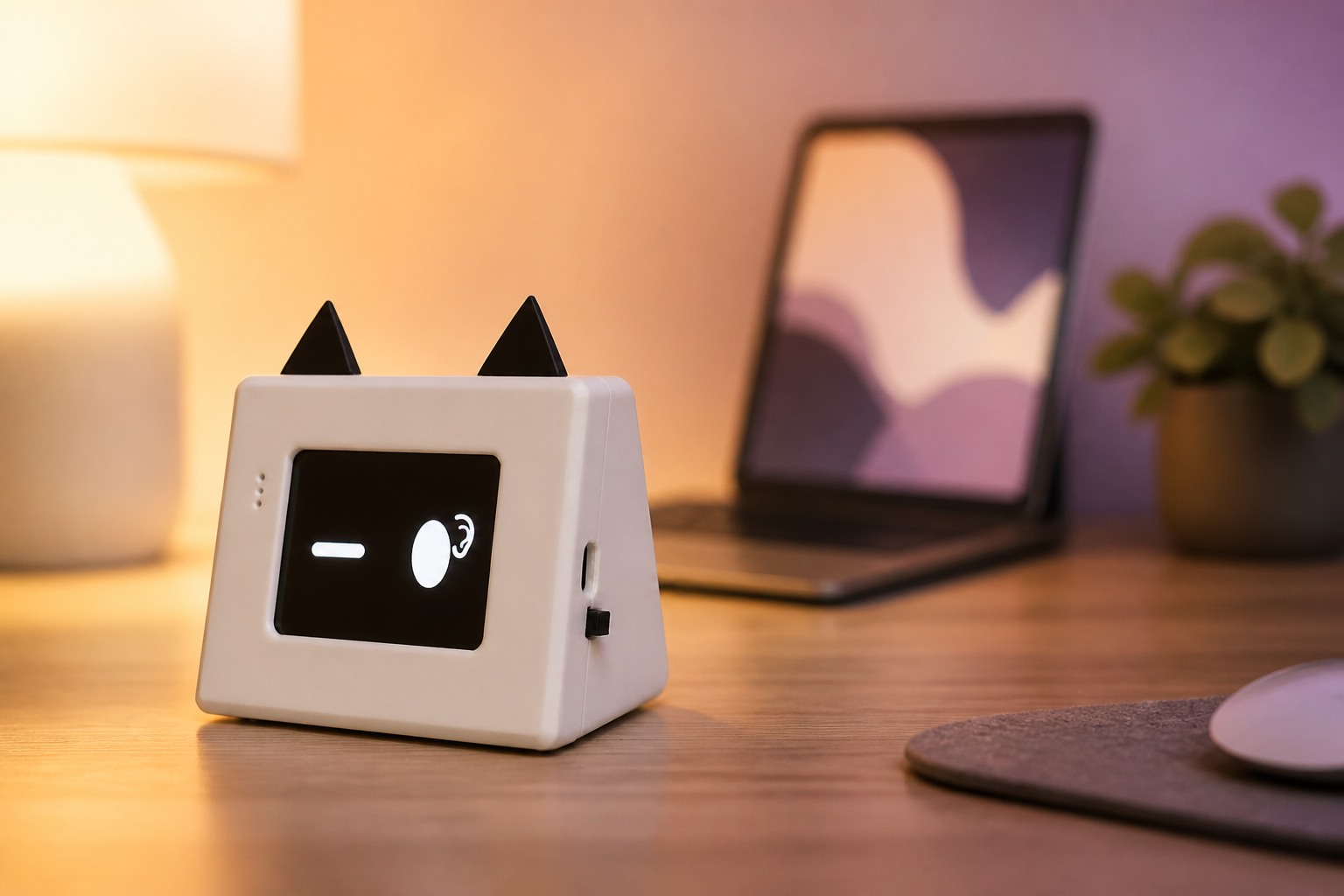
BEDROOM · LIVING ROOM · OFFICE
Present when invited. Quiet when you need focus.
Use Do Not Disturb, a quiet clock, or a sleep display for rest, meetings, and focused work. Press the BOOT button once to leave Do Not Disturb.
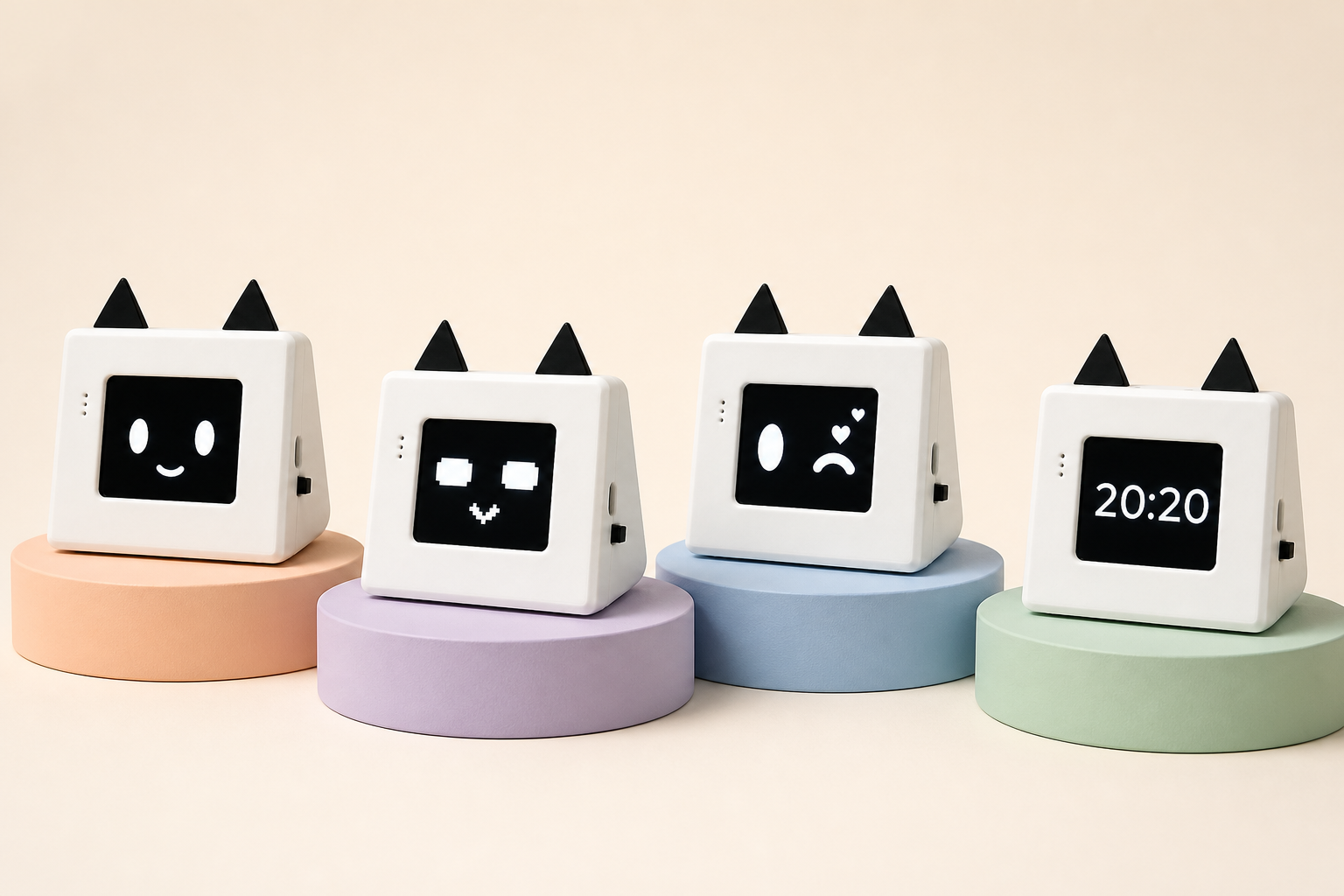
ONE COMPANION · TWO SURFACES
How a Mipo-Cat conversation works.
Mipo-Cat is the physical point of contact. Mipore coordinates the conversation and your settings on the computer, while the provider and model you selected supply the response.
- 01
Speak naturally
Mipo-Cat listens after the configured wake name or a button press and shows its state on screen.
- 02
Apply your Mipore settings
Mipore applies the bound conversation, selected agent, memory choices, and enabled tools.
- 03
Use your selected model
Mipore routes the request through the provider and model you enabled for that conversation.
- 04
Hear and see the reply
Mipo-Cat plays the response and shows a matching state on its display.
FROM MORNING TO NIGHT
Mipo-Cat fits into everyday routines.
Use its voice, display, alarms, and quiet modes for quick interactions without opening the full app each time.
- 07:30
START THE DAY
Wake gently, then hear what matters.
Start with an alarm, then ask for a briefing or check the first reminder on your schedule.
- 10:00
FOCUS
Stay present without demanding attention.
Use Do Not Disturb, a quiet clock, or a sleep display while you work. Press BOOT once to leave Do Not Disturb; use the wake name or press BOOT to leave sleep.
- 15:20
QUICK QUESTIONS
Ask without opening another browser tab.
Use the connected Mipore setup for a short question, a calculation, or an enabled online query while Mipo-Cat makes the response audible.
- 20:30
COMPANION TIME
Change the mood, not the device.
Switch agent, voice, and expression choices for a lighter conversation, a patient listener, or a calmer evening presence.
- 23:00
WIND DOWN
Let the room become quiet again.
Lower the volume or choose a sleep display so the companion becomes quiet when the day is over.
MIPO-CAT × MIPORE
Control Mipo-Cat from the Mipore app.
Mipo-Cat listens, speaks, displays its state, and responds to physical controls. In Mipore, you choose its model, personality, voice, memory, routines, and device behavior. Model credentials and full conversation history remain on your computer.
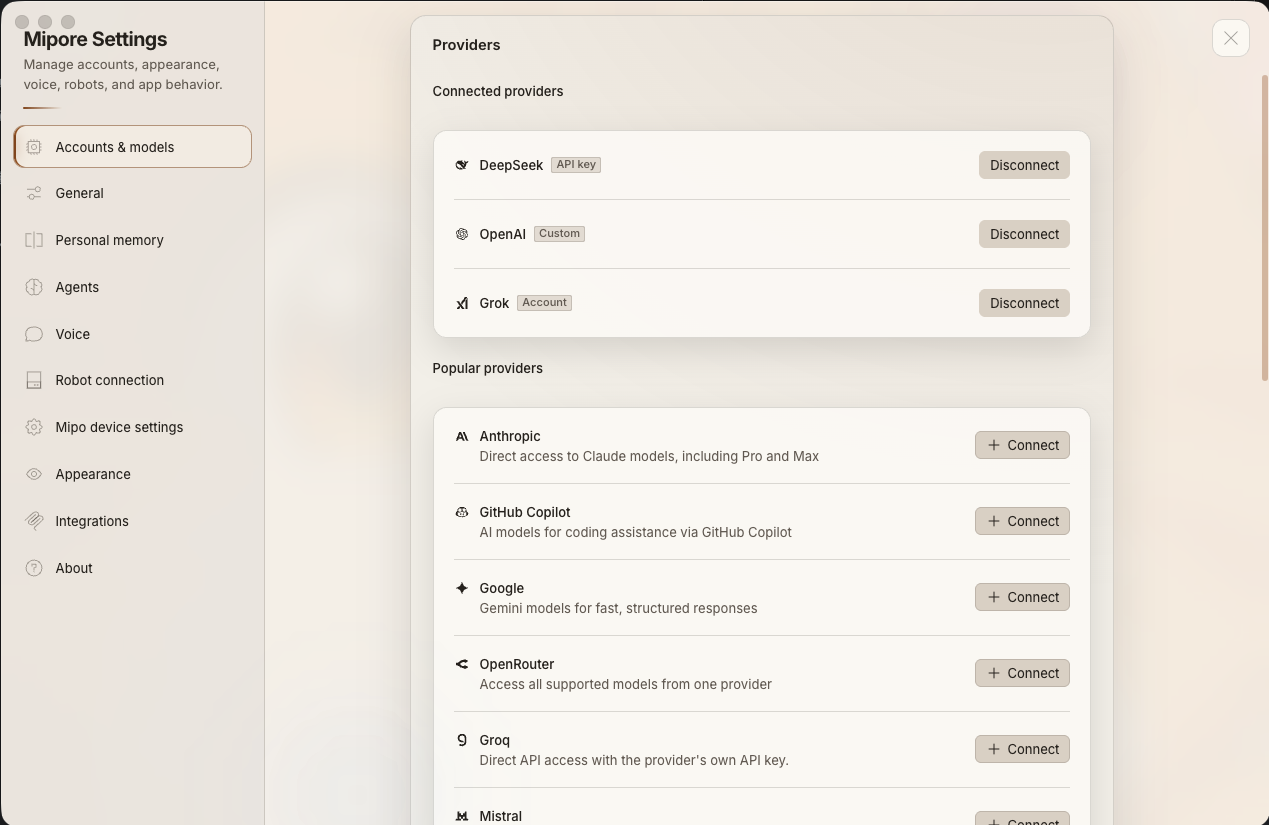
01 · MODELS
Use the AI provider you already trust.
Connect a supported provider account or API credential in Mipore, then choose which models appear in conversations. Provider access and full chat history stay on your computer; during normal conversations, Mipo-Cat exchanges the active audio, reply, and device state needed for the interaction.
02 · PERSONALITY
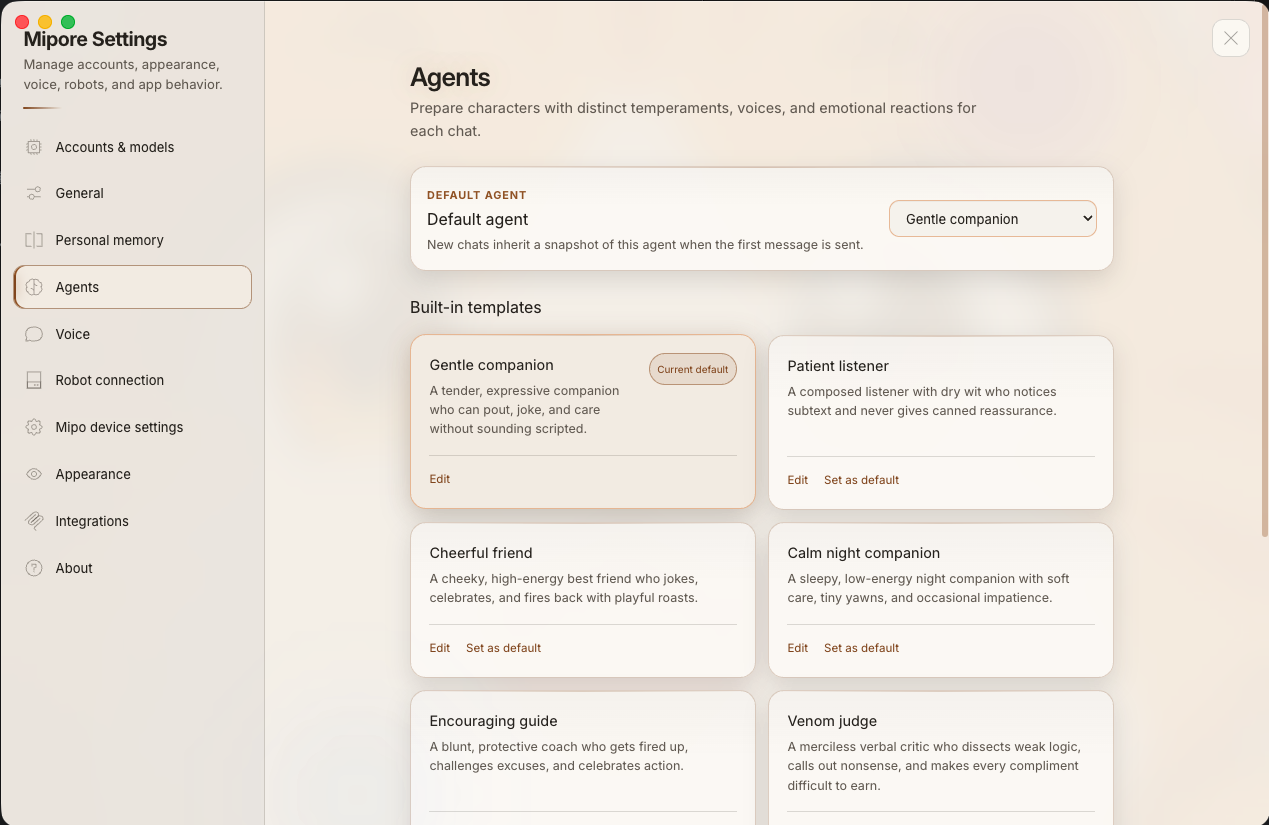
Choose a personality for each conversation.
Choose a gentle companion, cheerful friend, patient listener, calm night companion, or another edited agent. Mipore keeps the personality choice attached to the conversation, while Mipo-Cat expresses the result through its face and voice.
03 · VOICE
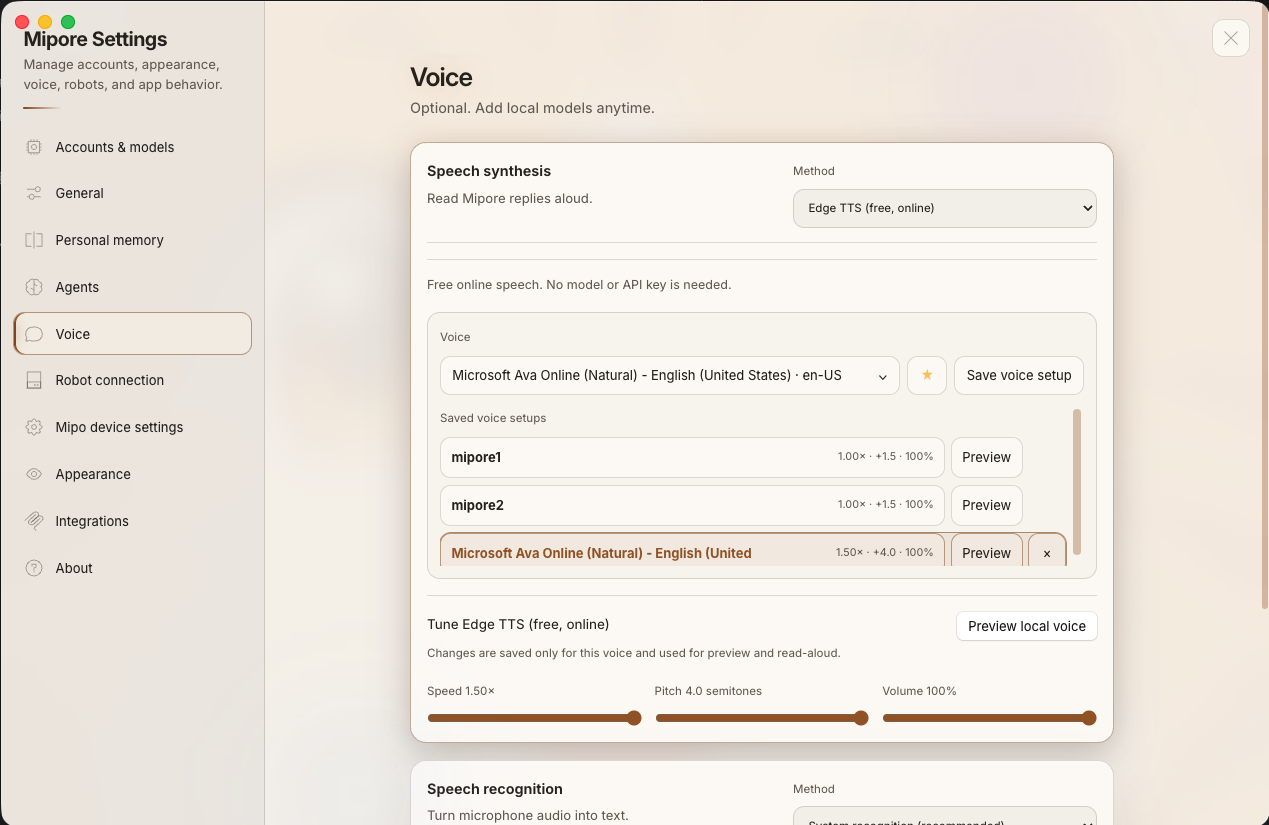
Make every reply sound more like your Mipo.
Select a speech method, save voice presets, preview the result, and tune speed, pitch, and volume in Mipore. The chosen voice is then played through the active output, including a bound Mipo-Cat when the setup is online.
04 · ROUTINES
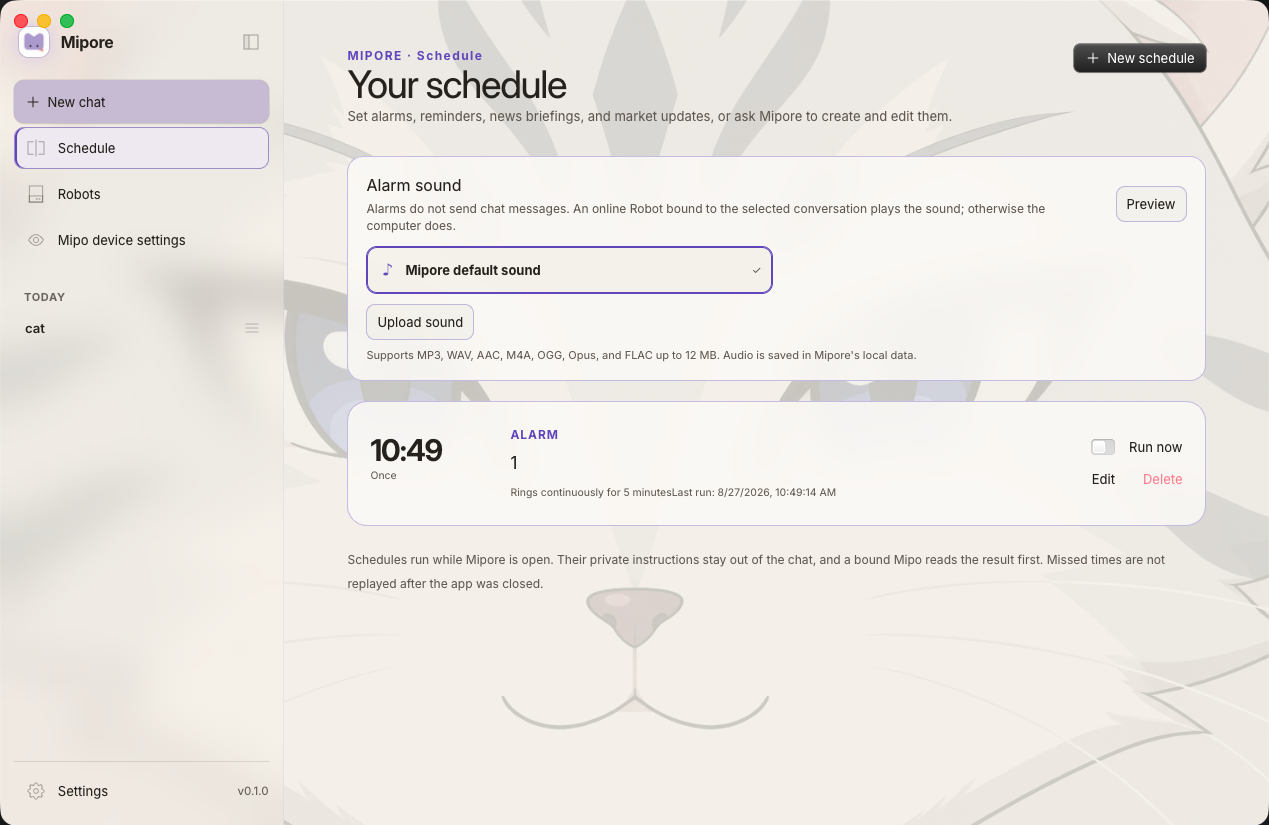
Turn schedules into moments you can hear in the room.
Create alarms, reminders, news briefings, and other schedules in Mipore. Preview the alarm sound, run an item on demand, and let an online robot bound to that conversation play it while Mipore is open.
05 · ROBOT BINDING
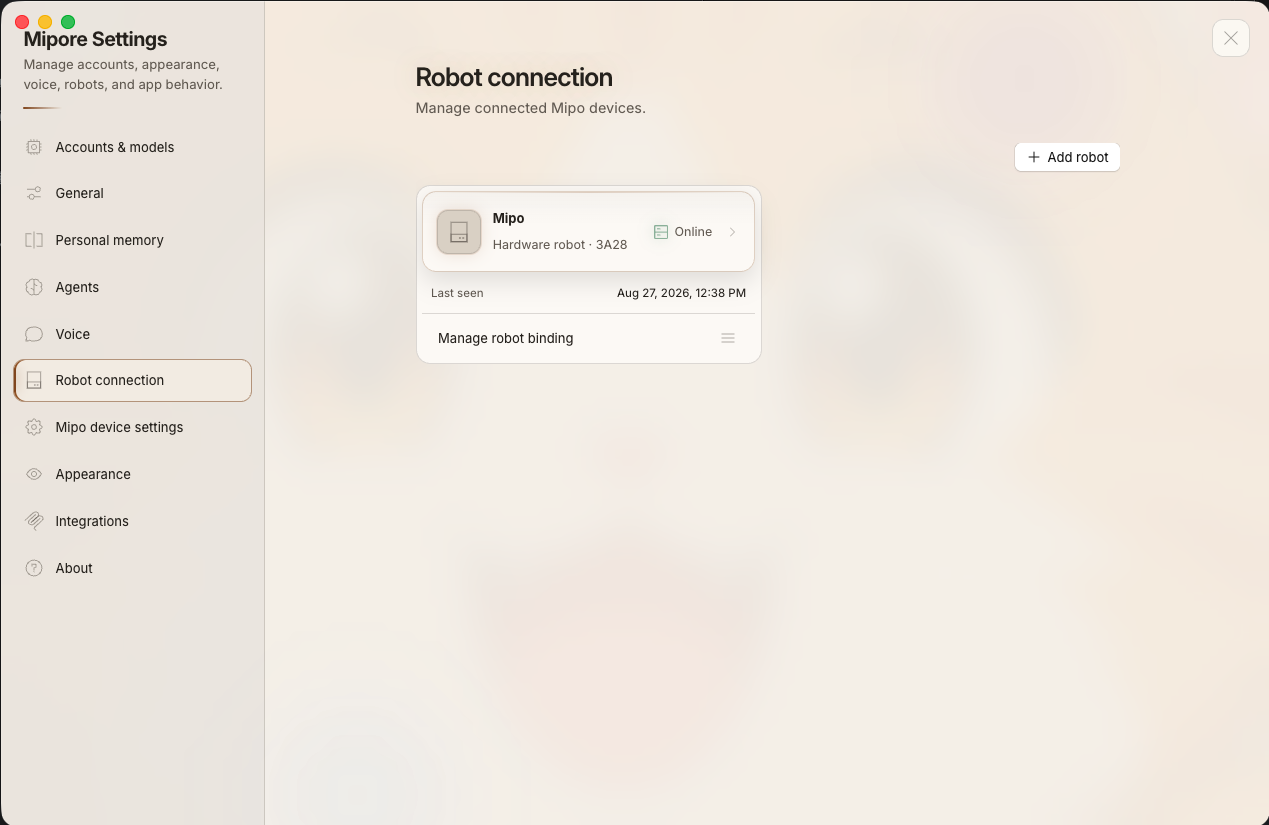
Always know which physical companion is responding.
Mipore shows connected Mipo devices, their online state, and when they were last seen. Bind a robot to the conversation you are using so the voice, schedule, and device controls reach the intended companion.
06 · DEVICE BEHAVIOR
Tune the physical behavior without touching firmware.
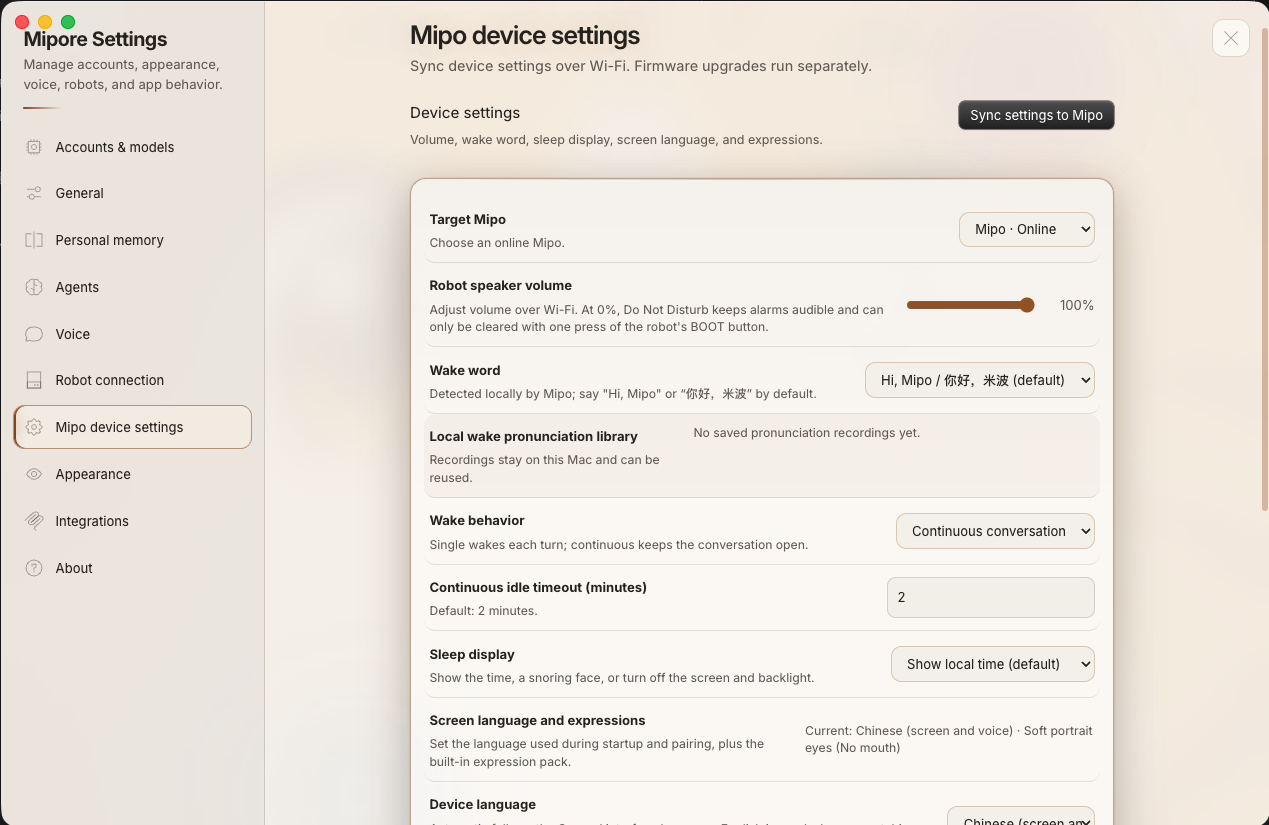
Select the target Mipo, then sync speaker volume, wake behavior, idle timeout, sleep display, screen language, and expressions over Wi-Fi. Firmware upgrades remain a separate, deliberate operation.
PRIVACY & DATA CONTROL
Your model access and full chat history stay off the robot.
Mipo-Cat is the voice, display, and physical control surface for the current interaction. Mipore keeps model connections, conversation history, and personal memory in local application data on your computer.
Kept on your computer
Provider accounts and API credentials remain in Mipore’s local account configuration. They are not copied to Mipo-Cat.
Not stored on the robot
During normal conversations, Mipo-Cat exchanges only the active audio, reply, display state, and device commands—not your full conversation archive. Normal conversation audio is handled through temporary buffers and is not saved as a recording.
A clear device boundary
Default wake-name detection runs on the device. Wi-Fi and pairing settings are saved on Mipo-Cat during setup so it can reconnect to the bound computer.
You decide what connects
Choose the model provider, speech method, memory settings, and extensions in Mipore. Online speech may process recognition audio or reply text; a wake-pronunciation sample is saved locally only when you explicitly record one.
FROM BOX TO COMPANION
Set up Mipore, then connect Mipo-Cat.
Mipo-Cat is hardware for the Mipore app. It does not include an AI provider account or subscription. Mipore keeps the active provider, model, voice, conversation, and device visible.
- 01
Check Mipore availability
Open the Mipore download section for the live macOS and Windows release status and supported system details.
- 02
Connect your AI
Add a supported provider account or API credential and enable the models you want to use.
- 03
Add Mipo-Cat
Connect and bind the physical device in Mipore so the intended conversation knows which robot to use.
- 04
Shape the companion
Choose an agent, voice, wake behavior, display state, and the schedules that fit your space.
- 05
Keep control nearby
Use Mipore to check connection state, change preferences, and sync device settings over Wi-Fi.
MIPO-CAT BRINGS
A microphone, speaker, expressive display, physical controls, and presence in the room.
MIPORE BRINGS
Conversation, model routing, agents, voice settings, schedules, memory choices, and device control.
WHY THIS PAIR
Why use Mipore with Mipo-Cat?
A companion you can see and hear
Mipo-Cat listens, speaks, and shows its state without adding another full-size screen to your desk.
Your companion, your setup
Choose the models, voices, and devices that fit your space. You are not locked into one AI provider.
Software and hardware, designed together
Mipore and Mipo Hardware share one setup for conversation, expression, routines, and device control.
NEXT STEP
See current versions and availability.
Review product versions, availability, included items, and setup requirements before ordering or requesting an email.